# Menucraft Gamepad-first menus for Unreal Engine 5.6, 5.7 and 5.8, built on CommonUI. Add the plugin, add a few lines of config, call one function, and your game has a main menu, a pause menu, a full settings screen with key and stick remapping, confirm dialogs, button prompts that follow the controller in use, and a loading screen. Every screen works with a controller alone, with mouse and keyboard, or with both mixed. Everything is themed from one Data Asset, so no widget needs editing to change the look. Seven themes ship with it, and players can switch between the ones you allow. ## Contents - [Quick start](#quick-start) - [What you get](#what-you-get) - [Screens and layers](#screens-and-layers) - [Settings screen](#settings-screen) - [Opening sequence and title screen](#opening-sequence-and-title-screen) - [Controller disconnected](#controller-disconnected) - [Menus, credits and music](#menus-credits-and-music) - [Languages](#languages) - [Your own settings (no code)](#your-own-settings-no-code) - [Key and stick remapping](#key-and-stick-remapping) - [Button prompts and key icons](#button-prompts-and-key-icons) - [Themes](#themes) - [Loading screen](#loading-screen) - [Blueprint reference](#blueprint-reference) - [C++ reference](#c-reference) - [Replacing a screen](#replacing-a-screen) - [Designing a screen in the Widget Designer](#designing-a-screen-in-the-widget-designer) - [Console and command line](#console-and-command-line) - [Troubleshooting](#troubleshooting) - [What Menucraft changes in your project](#what-menucraft-changes-in-your-project) - [Known limitations](#known-limitations) - [Removing Menucraft](#removing-menucraft) - [Versions and platforms](#versions-and-platforms) - [Changelog](#changelog) - [Credits](#credits) ## Quick start 1. **Enable the plugin** (Edit > Plugins > Menucraft). Fab installs it into the engine, so there is nothing to copy; to change its source, copy the `Menucraft` folder into your project's `Plugins` folder instead. Enabling it turns on CommonUI and Enhanced Input. 2. **Config.** Add these lines to your project's `Config` files (or set the same values in Project Settings): `DefaultEngine.ini` ```ini [/Script/Engine.Engine] GameViewportClientClassName=/Script/CommonUI.CommonGameViewportClient GameUserSettingsClassName=/Script/Menucraft.MCGameUserSettings ``` `DefaultGame.ini` ```ini [/Script/CommonInput.CommonInputSettings] InputData=/Script/Menucraft.MCInputData [/Script/CommonUI.CommonUISettings] CommonButtonAcceptKeyHandling=TriggerClick ``` `DefaultInput.ini` (new UE5 projects already have the first two) ```ini [/Script/Engine.InputSettings] DefaultPlayerInputClass=/Script/EnhancedInput.EnhancedPlayerInput DefaultInputComponentClass=/Script/EnhancedInput.EnhancedInputComponent [/Script/EnhancedInput.EnhancedInputDeveloperSettings] bEnableUserSettings=True ``` Then restart the editor: the engine reads the first two lines only when it starts. 3. **Show the main menu.** In your Player Controller's **Event BeginPlay** (the one your Game Mode uses): `Get MCUISubsystem` (the Local Player Subsystem node) > **Show Main Menu**. Bind **On Play Requested** on the same subsystem to load your first level (Open Level). 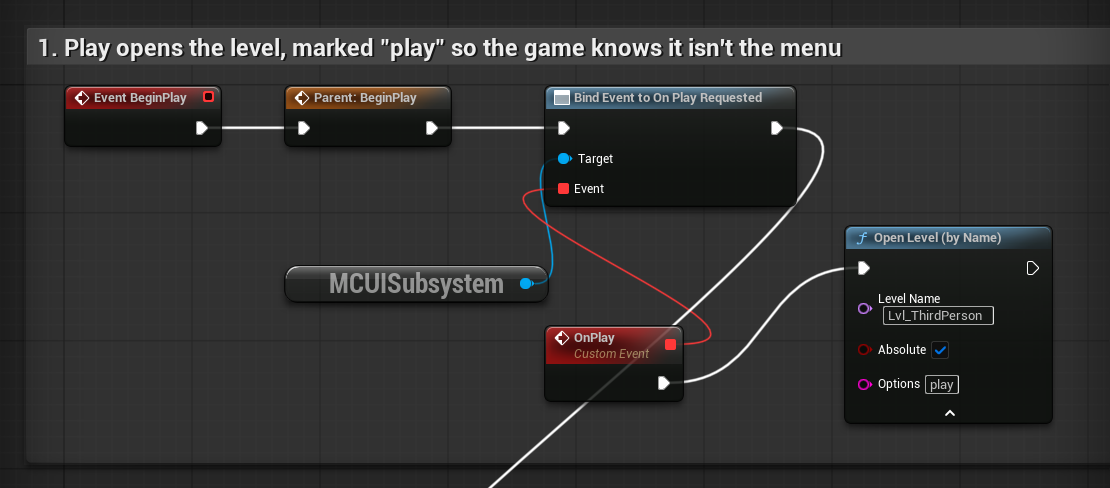 If the menu and the game share a map, tell them apart as the example project does: Play opens the level with the option `play`, and BeginPlay shows the main menu only without it. 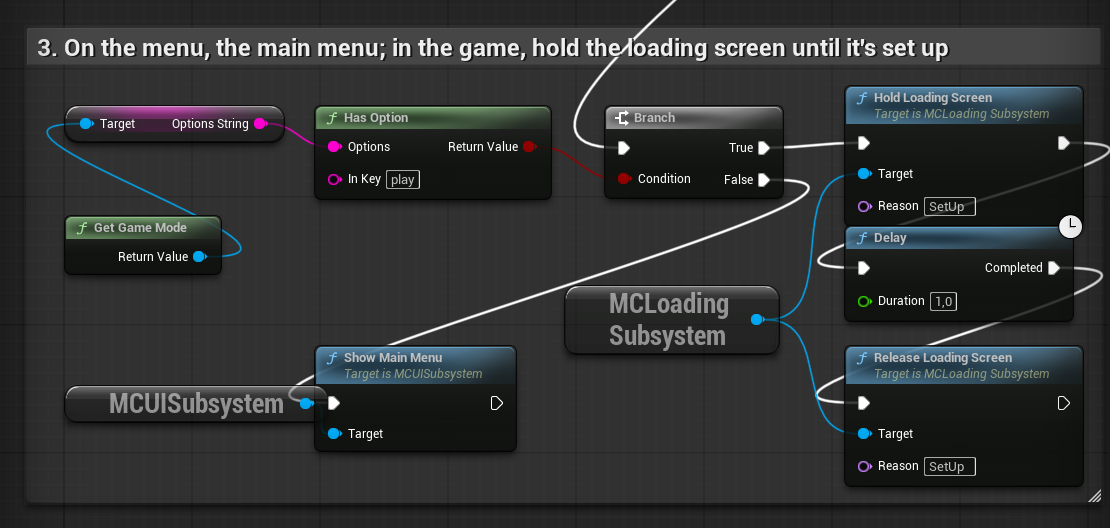 4. **Pause.** On your pause input call **Show Pause**. The Third Person template has none, so add one: the example uses the Escape and gamepad Start key events, with *Execute when Paused* ticked on each so they still fire while the game is paused. With an Input Action instead, tick *Trigger When Paused* on the action. The game pauses while the pause menu is open. In Play In Editor, Escape stops the session before the game sees it: test with the controller's Start, or see Troubleshooting. 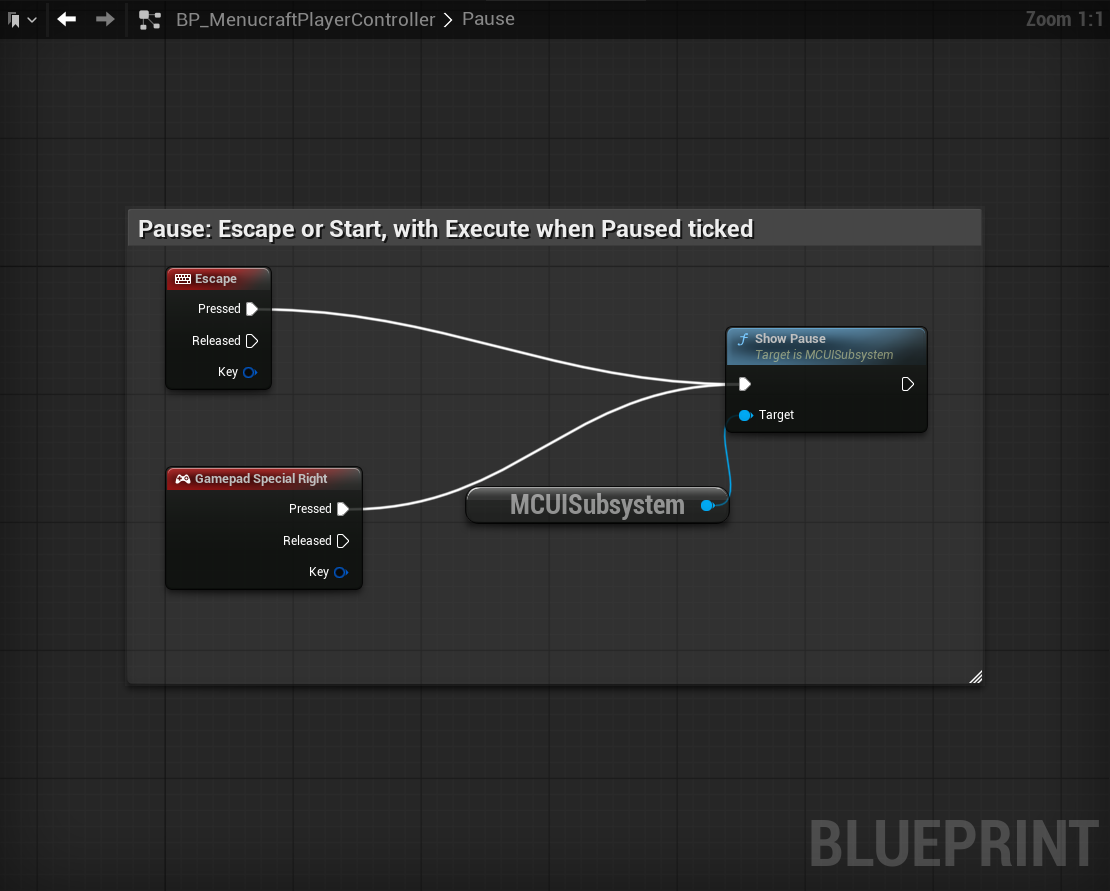 5. **Remappable keys (optional).** In Project Settings > Plugins > Menucraft > Input > **Remappable Contexts**, add your Input Mapping Contexts (in the Third Person template: `IMC_Default` and `IMC_MouseLook`). Every mapping in them gets a row in Settings > Controls, named after its action. Press Play. That is the whole setup. The loading screen only shows in Standalone Game and packaged builds, never in Play In Editor (the engine has no loading screens there). **Example project.** [Menucraft Example](https://github.com/filipetessaro/menucraft-example/releases/latest) (also the Fab page's *Example Project* link) is the Third Person template set up exactly like this, Blueprint only (UE 5.6, opens in 5.7 and 5.8 too). Its `BP_MenucraftPlayerController` holds every graph shown here; install Menucraft from Fab, open the project and press Play. ## What you get - **Opening sequence:** logos or videos, then a "press any button" title screen, before the main menu. - **Main menu:** Play, Settings, Credits, Quit (with a confirm), or your own list of buttons. - **Pause menu:** Resume, Settings, Main Menu, Quit (with confirms), or your own list. Pauses the game while any player's pause menu is up (Project Settings > Plugins > Menucraft > Behavior > **Pause On Game Menu**; turn it off for online multiplayer), and only lifts a pause it made. - **Credits** by section, rolling like a film's. - **Menu music** that fades out when the player presses Play. - **Translated** into 10 languages: Portuguese (Brazil), Spanish, French, German, Italian, Polish, Russian, Japanese, Korean and Simplified Chinese. - **Settings, five tabs**, with live preview, Apply, Defaults, and "discard unsaved changes?" on back: - **Graphics:** window mode, resolution, VSync, frame rate limit, render scale, brightness, anti-aliasing method, motion blur, upscaler (AMD FSR, NVIDIA DLSS or Intel XeSS, when the project has that plugin), HDR (on displays that support it), overall quality and each quality group, and Auto-Detect Quality. - **Audio:** master, music, effects and voice volume. - **Controls:** mouse and controller sensitivity, invert Y (mouse and controller apart), vibration, button prompt style, and every remappable key. - **Accessibility:** subtitles and subtitle size, colorblind mode and strength, interface scale. - **Gameplay:** camera shake and language. - **Your own settings** added from Project Settings, no code. - **Remapping** of keys, buttons, mouse axes, sticks and triggers: two keys per action, clear a key, conflict swapping. - **Button prompts** with Xbox, PlayStation, Switch and keyboard/mouse icons (181 icons, CC0). - **Confirm dialog** for anything destructive; focus starts on No. A **notice** (message and OK) for anything else. - **Controller disconnected:** pauses the game and asks to reconnect the controller. - **Loading screen** on engine startup and on every level load: art or video, per-map name and tips, seven layout spots, spinner, dots, progress bar or spinning logo, fades, press to continue. - **Themes** from a Data Asset: colours, corner radius, spacing, fonts, sounds, layout, button shapes, motion, backgrounds. Seven included; players can pick among the ones you list. Focus never gets lost: every screen opens on a sensible button, and closing a dialog or screen returns focus to the button that opened it. The mouse and the controller share one highlight, so they never point at different buttons. ## Screens and layers Screens live on four layers, bottom to top: | Layer | For | Input | |---|---|---| | **Game** | your HUD (`MCHUDScreen` or a subclass) | game input, cursor hidden | | **GameMenu** | pause menu; the game is paused while this layer has a screen | menu input | | **Menu** | main menu, settings, credits | menu input | | **Modal** | confirm dialogs | menu input, blocks the layers below | A higher layer takes input over the ones below. **Push Screen** (layer, class) adds any `CommonActivatableWidget` to a layer; back (B, Escape, Circle) closes the top screen. **Your own widgets.** A HUD that only shows things can stay as it is, added to the viewport. A widget the player operates (an inventory, a shop, a map) works best as a screen: reparent its Blueprint to **MCScreen** or to Common Activatable Widget (File > Reparent Blueprint) and open it with **Push Screen** (the GameMenu layer pauses the game while it is open; the Menu layer doesn't). It then gets the cursor, the back button and its focus back when a dialog closes, like every Menucraft screen. If you call Set Input Mode yourself instead, CommonUI sets the mode again whenever one of its screens opens or closes, and the two end up fighting over the cursor. ## Settings screen Values change live as the player moves through them, so they see and hear the result at once. Resolution and window mode are the exception: they change on **Apply**, which then asks to keep them and goes back to the old ones by itself after 15 seconds, so a mode the monitor can't show never leaves the player stuck. **Apply** saves. Leaving with unapplied changes asks to discard them, and discarding puts every value back (keys included). **Defaults** asks, then resets everything on screen; **Apply** keeps it, and backing out offers to discard it. Menucraft applies these itself: graphics, brightness (the engine's display gamma), audio volumes, subtitles on/off, colorblind correction, interface scale, vibration and language. These are stored for your game to read: mouse and controller sensitivity, invert Y, camera shake, subtitle size. Read them from **Get Menucraft User Settings**: - `Mouse Sensitivity`, `Gamepad Sensitivity` (1 = unchanged), `Invert Mouse Y`, `Invert Gamepad Y` - `Camera Shake`, `Subtitles`, `Get Subtitle Scale` (0.8 to 1.5) **Music, Effects and Voice volume** need your Sound Classes: set them in Project Settings > Plugins > Menucraft > Audio. Master volume works with no setup. **Upscaler** appears when the project has an upscaler plugin: AMD's FSR, NVIDIA's DLSS or Intel's XeSS, each from its maker and enabled in your project. The row lists the ones present plus Off, and FSR adds **FSR Quality** (Native AA to Ultra Performance). An upscaler runs on top of TSR, so the anti-aliasing row reads TSR while one is on. Menucraft switches them through their console variables (`r.FidelityFX.FSR.Enabled`, `r.NGX.DLSS.Enable`, `r.XeSS.Enabled`); Both FSR plugins are known (`r.FidelityFX.FSR.Enabled` and the FSR 3 plugin's `r.FidelityFX.FSR3.Enabled`). AMD's current plugin needs Shader Model 6 (the default of new UE5 projects; Project Settings > Platforms > Windows > D3D12 Targeted Shader Formats) and crashes the renderer below it, so Menucraft only offers FSR when the game runs on SM6. DLSS and XeSS are only switched on and off; their quality is left to their own plugins. The row lists a plugin that is in the project even on a graphics card that can't run it (DLSS on an AMD card): hide the row with Hidden Settings, or leave the plugin out, where that matters. While an upscaler is on, Render Scale has no say over FSR, which follows FSR Quality. **Get Available Upscalers** tells you which are there. **Language** lists the cultures your project is localized to (Localization Dashboard). With only English it shows English alone. Tabs switch with LB/RB (Q/E on the keyboard) or by clicking them. With the mouse, the `<` and `>` beside a value step it, and number settings show a bar of where the value sits (theme: **Value Bars**). **Leave out or reorder** (Project Settings > Plugins > Menucraft > Menus): - **Hidden Settings**: rows or whole tabs to leave out, by their English name, e.g. `VSync`, `Render Scale`, `Accessibility`, a key mapping's display name, or one of your custom settings. Works the same in every language. - **Tab Order**: tabs in this order, e.g. `Audio`, `Controls`; the ones not listed follow as usual. Rows keep the order they are built in (your custom settings come after a tab's own rows); to reorder rows, override `BuildTabs` in C++. ## Opening sequence and title screen Project Settings > Plugins > Menucraft > **Startup**. The first **Show Main Menu** of a run plays them, then opens the main menu. - **Splashes**: cards in order, each an **Image** or a **Movie** (an .mp4 in `Content/Movies`, by file name without the extension, shipped like a loading movie), **Seconds** on screen (0 plays a movie to its end), a **Background** colour, and **Skippable** (any key or button moves on). - **Title Screen** (off until you tick it): your theme's **Title Logo**, or the Project Name, with **Title Screen Prompt** pulsing below it. Any key or button goes on to the main menu. - **Skip Intro In Editor** (on by default) goes straight to the main menu in Play In Editor. `-mcnointro` on the command line does the same in a game (not in Shipping). To replace them, point **Splash Class** or **Title Screen Class** (Screens) at your own screen and call **Continue Intro** when it's done. ## Controller disconnected When the controller in use disconnects (in a menu or during play), Menucraft pauses the game and shows "Controller Disconnected"; the message closes by itself when a controller is back. Turn it off in Behavior > **Controller Disconnected Message**. ## Menus, credits and music Project Settings > Plugins > Menucraft > **Menus**: - **Main Menu Buttons**, **Pause Buttons**: each button's **Label** and **Action**, top to bottom. Actions: Play, Resume, Settings, Credits, Main Menu, Quit, **Open Screen** (pushes the **Screen** class on top) and **Event** (fires **On Menu Button** on the MCUISubsystem with the button's **Id**, for Continue, Load Game, a store, anything). Remove a button to hide it, e.g. Quit on consoles. - **Credits Sections**: a **Heading** and its **Lines** each. **Roll Credits** scrolls them upward when they don't fit, holds at the end, and starts over. With no sections at all, the credits screen shows its own Credits text. Project Settings > Plugins > Menucraft > **Audio**: - **Menu Music** plays while the main menu is up and fades out over **Music Fade Seconds** when the player presses Play. It keeps playing through the level load, so the fade happens over the new level. Give the sound the Music sound class so the Music Volume slider controls it. ## Languages Menucraft's own text (buttons, tabs, options, messages) ships translated into Portuguese (Brazil), Spanish, French, German, Italian, Polish, Russian, Japanese, Korean and Simplified Chinese. It follows the game's language: the engine only switches to languages your game is localized to, so add those cultures to your project's localization (Localization Dashboard) and Menucraft's text appears translated in them, including in the Language option of the settings screen. To ship them, also tick those cultures in Project Settings > Packaging > **Localizations to Package**: a packaged game carries only the languages listed there (English alone by default). Your own texts (custom settings, credits, tips, menu buttons) are yours to localize like any game text. The translations were made without native-speaker review; corrections are welcome at the support address. ## Your own settings (no code) Project Settings > Plugins > Menucraft > **Custom Settings**. Each entry becomes a row on the settings screen and is saved, reverted on discard and reset on Defaults like the built-in ones. | Field | Meaning | |---|---| | **Id** | Name you read it by, e.g. `FieldOfView` | | **Label** | Row text | | **Tab** | A built-in tab (Graphics, Audio, Controls, Accessibility, Gameplay) or a new name, which makes a new tab | | **Type** | Toggle, Options, Range (number) or Percent (0.5 shows as 50%) | | **Options** | Choices, for Options | | **Min, Max, Step** | For Range and Percent | | **Default** | Toggle: 0 or 1. Options: the index. Range/Percent: the value | In your game: - **Get Menucraft User Settings > Get Custom Value** (Id) returns the value; **Get Custom Bool** for toggles. - **On Settings Changed** (same object) fires on every change on the settings screen, on Apply, Defaults and Discard. Bind it and apply the value, and also apply it once in BeginPlay. Example: *Field of View*, Tab `Gameplay`, Type `Range`, Min 70, Max 110, Step 5, Default 90. In your Player Controller, an event sets the camera's field of view from the setting: `Get Controlled Pawn > Get Component by Class (Camera Component) > Set Field Of View (Get Custom Value "FieldOfView")`. BeginPlay binds it to On Settings Changed and calls it once. 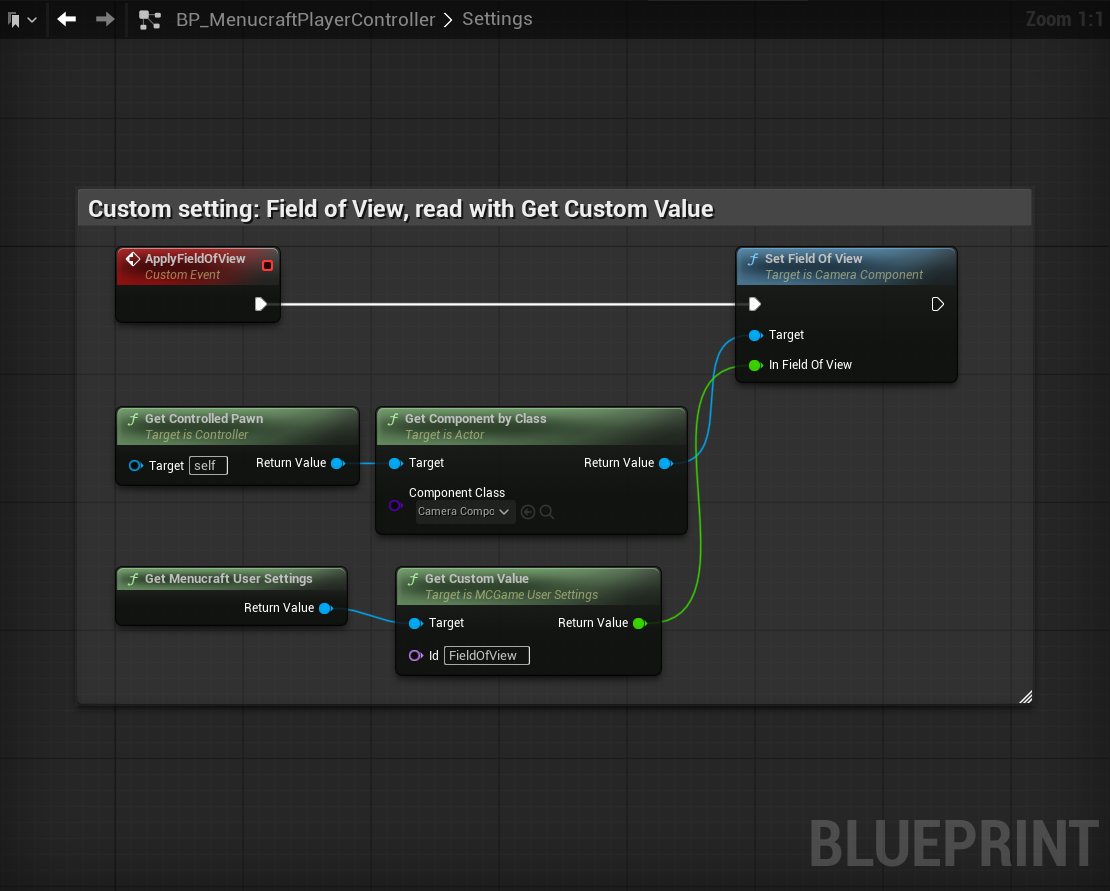 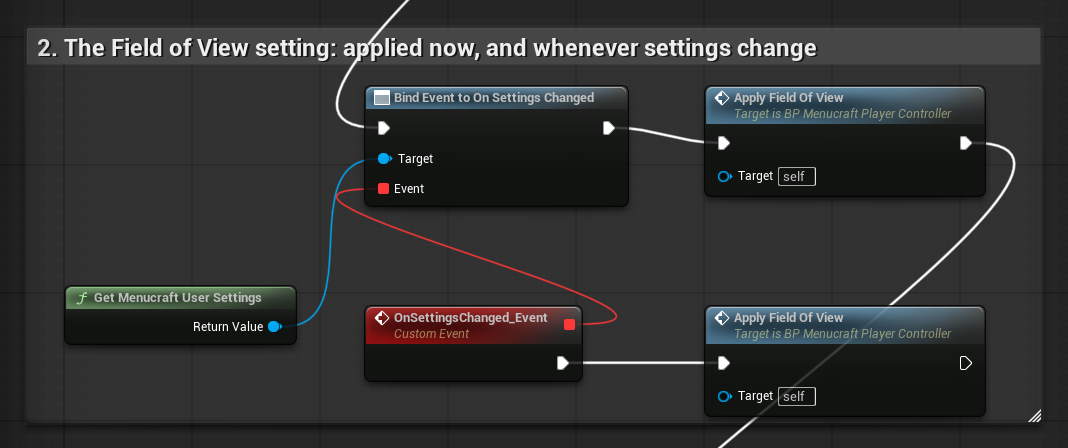 ## Key and stick remapping Rows come from the Input Mapping Contexts in **Remappable Contexts**, one per mapping: keyboard/mouse mappings and controller mappings in two sections, by their default key. A mapping's row is named after its action (`IA_Jump` shows as Jump), and keys that share a 2D action, such as WASD on Move, add their direction (Move Forward, Move Left). To choose the names yourself, or to translate them, give the mapping *Player Mappable Key Settings* in the context (Setting Behavior: Override Settings, with a unique **Name** and a **Display Name**); mappings with their own settings keep them. Turn off **Remap Every Mapping** to list only those. An action with Player Mappable Key Settings on the Input Action (Space Bar and Gamepad A sharing one name) shows in both sections. When the mapping has no Player Mappable Key Settings, its row label is the Input Action's **Action Description** if it has one, so you can translate it there. Each row has **two keys**: left and right (or a click) pick one. The second is empty until the player sets it. To remap, pick a key and press the new key or button; **Clear** (Delete, or Y on a controller) empties the picked key. A keyboard/mouse row takes keyboard and mouse input, a controller row the controller; in split screen each player's rows listen to that player only. It also takes: - **Sticks:** move a stick. Moving the right stick on "Move" swaps the two sticks. - **Triggers and mouse axes:** pull the trigger, move the mouse, turn the wheel (a wheel row listens to the wheel only). - **Conflicts:** a key already used by another action in the same Input Mapping Context moves to this one, and that action gets this one's old key. Contexts don't conflict with each other: E can be Interact on foot and Exit in a vehicle. - **A controller action always keeps one button.** Enhanced Input gives an action with no button its default one back, so Clear on its last button, or taking another action's only button for an empty second key, shows a message instead of an empty row that would still fire. Keyboard keys can be cleared freely. - **Cancel:** Escape, or Start on a controller row, stops listening and keeps the old key, and so does a row that hears nothing for 5 seconds. Escape and Start are therefore never offered as keys. Remaps are saved by Enhanced Input User Settings, per player, on Apply. They are saved under the mapping's name. With Remap Every Mapping that name is made from the action and its default key, so changing a default key in the context later, or giving the mapping its own Player Mappable Key Settings, starts that row from its default again for players who had remapped it. Set the names yourself before release if you expect to change keys in an update. ## Button prompts and key icons The bar at the bottom of every screen shows what the buttons do (Select, Back, Tabs) with the icon for the device in use: keyboard keys when the player last used the keyboard, the controller's buttons when they touch the pad. Key rows show icons too. **Button Prompts** (Settings > Controls) chooses Automatic, Xbox, PlayStation or Switch. Automatic uses the controller type CommonUI reports. On PC, where CommonUI reports most pads as generic, it looks at the controllers plugged in: a Sony one shows PlayStation buttons, a Nintendo one Switch buttons, anything else Xbox, since most PC pads speak XInput. Players can always pick the style themselves. Your own widgets can use `MCKeyIcon` (Set Key) to show any key's icon. ## Themes Create a **Data Asset** of class **MCTheme** (or duplicate one of the seven in `Menucraft Content/Themes`) and set it in Project Settings > Plugins > Menucraft > Look > **Theme**. Every screen follows it. | Theme | Look | |---|---| | `DA_Theme_Card` | Rounded dark card, teal focus | | `DA_Theme_Amber` | No card, amber focus | | `DA_Theme_Mono` | No card, black and white, high contrast | | `DA_Theme_Horror` | No card, square corners, blood red, upper-case titles | | `DA_Theme_SciFi` | Cyan, square buttons, menu on the left, buttons slide in, upper-case titles | | `DA_Theme_Fantasy` | Dark brown and gold, gold focus outline, upper-case titles | | `DA_Theme_Minimal` | No card, text-only buttons in Roboto Light, menu on the left | Enable *Show Plugin Content* in the Content Browser settings to see them. **Let the player choose.** List themes in Project Settings > Plugins > Menucraft > Look > **Player Themes** (set **Theme** too, and include it in the list, so the row can show the one in use) and a **Theme** row appears in Settings > Accessibility. The pick is saved with the player's settings and takes effect on Apply: every screen is rebuilt in the new theme, and the player stays in Settings. A theme's **Display Name** is what the row shows. What a theme sets: - **Colours**: backdrop and card, button and focused button, focus outline, text, accent (section headers, the active tab), keycaps. - **Shape**: corner radius, paddings, spacing, menu button width. - **Fonts**: title, heading, button, body and prompt; upper-case titles. - **Layout**: **Menu Alignment** Center, Left or Right (dialogs stay centred) with **Menu Edge Margin**; **Title Logo** (an image in place of the main menu's title text) with **Title Logo Height**. - **Buttons**: **Button Shape** Rounded, Square, Pill, Underline (no box, a line under the focused button) or Text Only (no box, the focused text in the accent colour); **Focus Motion** None, Grow, Slide (inward) or Pulse, for menu buttons. - **Screens**: **Screen Transition** None, Fade, Slide Up, Slide Side or Zoom, over **Transition Seconds**. Input works during the transition. - **Backgrounds**: what sits behind the **Main Menu**, the **Pause** menu and **Other** screens (settings, credits, your own), each one of None (the game as it is), Dim, Blur (with **Blur Strength**), Image or Video (a looping `.mp4` video from `Content/Movies`, by file name without the extension; ship the folder as described under Loading screen > Video), with a tint: the theme's Backdrop colour, or **Own Tint**. Out of the box the main menu dims and the others blur the game behind them. Dialogs always dim the screen under them. Any screen class or Blueprint can set **Override Background** to have its own. - **Sounds** (optional): focus, confirm and back. To try values without editing the asset, start the game with `-mcthemeset=MenuAlignment=Left;ButtonShape=Underline` (any theme property; not in Shipping builds). ## Loading screen On by default, both on engine startup and on every level load. Everything below is in Project Settings > Plugins > Menucraft > **Loading Screen**. Out of the box: title in the centre, the tip and a thin progress bar along the bottom; with Loading Images set, a vignette too (the vignette, scrim and slow zoom are drawn over the art). **When it shows** - **Startup Loading Screen**, **Loading Screen On Travel**: turn each off. - **Minimum Loading Time** (1 s by default): keeps the screen up this long so fast loads don't flash. Set 0 to show it only as long as the load takes. - **Wait For Streaming** (on by default): once the map is in, the screen stays until the level streaming around the player has finished (World Partition cells, streamed sublevels), so the player never watches the world fill in. - **Max Hold Seconds**: the longest it waits after the map has loaded, for streaming or a hold (default 30). If it gives up, the log names the holds still in place. **Holding it until your game is ready.** A map that has loaded isn't always ready to play: a save is still being read, players are still connecting, a cinematic is setting up. **Get MCLoadingSubsystem** (the Game Instance Subsystem node) **> Hold Loading Screen** (Reason) keeps the screen up after the load, and **Release Loading Screen** (the same Reason) lets it fade away. Hold in BeginPlay or earlier (before Open Level); several systems can hold at once with different reasons, and a hold placed between loads applies to the next one. Game input is blocked while the screen is held, so nobody walks off under it. **Is Loading Screen Held** tells you whether it is. Holds that outlast Max Hold Seconds are dropped. Like the loading screen itself, holds do nothing in Play In Editor or with Loading Screen On Travel off. With Loading Movies, the held screen shows the art (or the background colour) instead of the video. **Content** - **Loading Title** (empty = project name). - **Loading Images**, in **Image Order** Random or In Order. With **Image Seconds** above 0, a long load cross-fades from one image to the next. - **Loading Tips**, in **Tip Order** Random or In Order, changing every **Tip Seconds**. **Tip Label** adds a small heading over the tip, such as "TIP". - **Per Map**: for any map, a **Name** and **Description** (shown under the title), its own **Images**, and extra **Tips** (or only its own, with **Only These Tips**). **Layout** (each element goes in one of seven spots, or Hidden; elements in the same spot stack) - **Title Spot** (title, map name and description), **Tip Spot**, **Indicator Spot**, **Logo Spot**: Bottom Left, Bottom Center, Bottom Right, Top Left, Top Center, Top Right, Center or Hidden. - **Indicator**: Spinner, Dots, Progress Bar, Spinning Image (your **Indicator Image**, such as a logo, turning) or None. **Loading Label** puts a word such as "Loading" beside it. - **Logo** with **Logo Height**: a studio or game logo. The engine gives no real progress for a level load, so the progress bar fills over the time that map took the last time it loaded (remembered per map in the player's `GameUserSettings.ini`, section `[Menucraft.LoadTimes]`) and holds at 95% until the load ends. The first time a map loads, the bar fills more and more slowly instead. **Look** - **Own Colors** with **Background**, **Text Color** and **Accent**: colours for the loading screen alone. Off, it follows the theme. - **Title Font**, **Body Font**: other fonts than the theme's. - **Scrim**: how much the art darkens behind the text (0 to 1). **Vignette**: darker edges. - **Slow Zoom**: the art slowly moves closer while the load lasts. - **Fade In Seconds**, **Fade Out Seconds**: fade in at the start; at the end the screen fades away over the loaded level instead of cutting. **Video** - **Loading Movies**: file names, without extension, of videos in `Content/Movies` (for example `Intro` for `Content/Movies/Intro.mp4`). They play behind the text in place of the art, looping with **Loop Movies**. Add `Movies` to Project Settings > Packaging > **Additional Non-Asset Directories to Copy** so the videos ship with the game. **Waiting for the player** - **Press To Continue**: once the level is in, the screen stays and shows **Continue Prompt** until the player presses any key or button. **Your own widget** - **Loading Widget Class**: any Widget Blueprint, shown instead of Menucraft's screen on level loads, and held after them like Menucraft's (it goes without a fade). While a level loads the game thread is busy, so a Widget Blueprint's animations and logic stand still until the load ends; Menucraft's own screen keeps moving because it runs on the loading thread. Keep such a widget to pictures and text: no Tick, bindings or Blueprint animations, which would run while the game is loading underneath them. **What shows on engine startup.** Assets can't load that early, so the startup screen shows the layout, indicator, title, tips and (with Own Colors) the colours, but no art, logo, video or custom fonts. Those appear on every level load. **Preview.** `mc.PreviewLoading 5` in the console shows the screen over the game for 5 seconds; `mc.PreviewLoading 5 /Game/Maps/MyMap` shows it as it appears for that map. Preview works in Play In Editor too (it draws over the game); real level loads show the screen only in Standalone Game and packaged builds, since the engine turns the movie player off in the editor. The console command is left out of Shipping builds; the **Preview** node works everywhere. ## Blueprint reference **MCUISubsystem** (Local Player Subsystem: the **Get MCUISubsystem** node; inside an MCScreen Blueprint, also **Get Menucraft UI**) | Node | Does | |---|---| | Show Main Menu | Clears the menus and opens the main menu | | Show Pause | Opens the pause menu, unless a menu is already up | | Show Settings (From) | Opens settings over the screen From | | Show Credits | Opens the credits | | Request Play | What the main menu's Play does: closes the screens on the Menu layer, fires On Play Requested | | Request Main Menu | Asks, then shows the main menu and fires On Main Menu Requested | | Request Quit | Asks, then quits to desktop | | Push Screen (Layer, Class) | Adds any screen to a layer; returns it | | Clear Layer (Layer) | Closes every screen on a layer | | Get Top Screen (Layer) | The screen on top of a layer, or none | | On Play Requested | Event: load your level here | | On Main Menu Requested | Event: travel back to your menu level here, if you have one | | On Menu Button (Id) | Event: a main or pause menu button with the Event action was pressed | | Show Notice (Title, Message) | A message with an OK button, on the Modal layer; returns the screen | | Continue Intro | Moves the opening sequence on: from a splash to the next, to the title screen, to the main menu | | Start Menu Music, Stop Menu Music | Fade the Menu Music in or out (Show Main Menu and Request Play do it; call Stop when a button of your own starts the game) | **MCLoadingSubsystem** (Game Instance Subsystem) | Node | Does | |---|---| | Hold Loading Screen (Reason) | Keeps the loading screen up after the map loads, until released | | Release Loading Screen (Reason) | Lets it fade away once no other hold or streaming remains | | Is Loading Screen Held | True while a hold is in place or the level just loaded is still streaming in | | Preview (Seconds, Map Name) | Shows the screen over the game, as `mc.PreviewLoading` does | **Show Confirm** (Title, Message): a yes/no dialog as one node, with **Yes** and **No** exec pins. Back answers No. **Get Menucraft User Settings**: every value on the settings screen, plus Get Custom Value, Get Custom Bool, Set Custom Value, Apply Live Settings, and the On Settings Changed event. After changing values from Blueprint, call **Apply Settings** to save them. **Building a screen in Blueprint:** create a Widget Blueprint whose parent is **MCScreen**, leave the Designer empty, and in **Event On Initialized**: 1. **Build Panel** (Title): makes the backdrop, the themed card, the title and the button prompt bar, and returns the card's column. 2. **Add Button** (Parent = the column, Label): a themed button. The first one gets focus when the screen opens. Drag from it and **Bind Event to On Button Base Clicked**. 3. **Add Text** (Parent, Content, and under the node's arrow, Role Title/Heading/Body): themed text. For the built-in screens laid out in the Designer, see [Designing a screen in the Widget Designer](#designing-a-screen-in-the-widget-designer). Other nodes: **Reset Focus** (any MCScreen: back to its first button), **Select Tab** and **Get Tab Count** (the settings screen), **Set Label**, **Get Label** and **Set Active** (MCButton). **On Settings Changed** also fires after every level load, when Menucraft applies the player's settings again. A custom setting with no Tab goes on Gameplay. The theme also sets **Text Focused**, **Text Disabled** and **Key Icon Backing**. Then open it with **Push Screen**. You get back handling, focus restore, sounds and the theme with no extra work. You can also design the tree in the Designer yourself; the helpers are optional. ## C++ reference Module `Menucraft`. Main types: Add `"Menucraft"` to `PublicDependencyModuleNames` in your module's `.Build.cs`. - `UMCUISubsystem`: the table above, plus `ShowConfirm(Title, Message, TFunction<void(bool)>)`. - `UMCScreen`: base screen. `BuildPanel`, `AddText`, `AddButton(Parent, Label, TFunction<void()>)`, `DefaultFocus`. - `UMCSettingsScreen`: override `BuildTabs(UMCGameUserSettings&)` to add, remove or reorder rows, with `AddTab`, `AddOptions`, `AddToggle`, `AddRange`, `AddPercent`, `AddAction` (a row that runs a function) and `AddKeyRows`. Each row takes a getter and a setter lambda. - `UMCGameUserSettings`: the saved values; `ApplyLiveSettings()` applies what needs no resolution change. - `UMCTheme::Get()`: the active theme; `MakeBox(Color)` gives a rounded brush in its corner radius. - `UMCSettings::Get()`: the Project Settings page. ## Replacing a screen Project Settings > Plugins > Menucraft > **Screens** holds the class of every screen: Layout, HUD, Main Menu, Pause, Settings, Credits, Confirm, Splash, Title Screen, Notice. Point any of them at your own subclass: - The main menu shows your **Project Name** (Project Settings > Description). A Blueprint child of **MCMainMenuScreen** that sets **Title** in its defaults shows another name; a theme's **Title Logo** shows an image. - A Blueprint child of **MCCreditsScreen** with your **Credits** text is your credits screen. With neither that nor Credits Sections, the credits read "Made with Menucraft": fill one of them before you ship. - A Blueprint built on **MCScreen** (above) replaces a screen entirely; call Request Play, Request Quit and the rest from its buttons to keep the built-in behaviour. - A C++ child of **MCSettingsScreen** overriding `BuildTabs` changes the settings rows. - A Layout subclass may supply its own tree, as long as it has stacks named Game, GameMenu, Menu and Modal. ## Designing a screen in the Widget Designer Every built-in screen builds itself in code, so it follows the theme with nothing to edit. To lay one out yourself, start from its Widget Blueprint in `Menucraft Content/Screens`: duplicate it into your project's Content, change it in the Designer, and point its entry in Project Settings > Plugins > Menucraft > **Screens** at your copy. | Screen | Blueprint | Widgets Menucraft fills, by name | |---|---|---| | Main menu | `WBP_MainMenu` | TitleText, ButtonPanel, ActionBar | | Pause | `WBP_Pause` | TitleText, ButtonPanel, ActionBar | | Settings | `WBP_Settings` | TitleText, **TabBar**, **Switcher** (a Widget Switcher), **ButtonPanel** (Apply, Defaults, Back), ActionBar | | Credits | `WBP_Credits` | TitleText, **CreditsRoll** (a Scroll Box), ButtonPanel, ActionBar | | Confirm | `WBP_Confirm` | TitleText (the question), MessageText, ButtonPanel (Yes, No), ActionBar | | Notice | `WBP_Notice` | TitleText, MessageText, ButtonPanel (OK), ActionBar | | Title screen | `WBP_TitleScreen` | TitleText, PromptText | | Splash | `WBP_Splash` | **Picture** (an Image: the logo or video), Backdrop (a Border: the card's colour) | Menucraft puts its themed buttons in **ButtonPanel** (a Vertical Box makes a column, a Horizontal Box a row), sets the texts, and adds the prompts to **ActionBar** (the `MCActionBar` widget). Everything else is yours: move, restyle, add images, animations, your own buttons. Any of the named widgets can go and the screen does without it, except the ones in bold, and ButtonPanel on Confirm and Notice (without it they have no way to answer). TabBar and Switcher may hold your own widgets too; Menucraft only adds and orders its tabs among them. Your design keeps its own colours when the player switches theme; the buttons and the prompts follow it. A designed screen also leaves out what the theme would have drawn around it (the background, the card, the Title Logo, the menu alignment): those are yours to place. The log says so when a widget a screen can't do without is missing. Menu buttons, settings rows, tabs, focus, back, confirms and the rest behave exactly as on the built-in screens. ## Console and command line | Command | Does | |---|---| | `mc.PreviewLoading [seconds] [map]` | Shows the loading screen over the game (default 5 s), as it appears for that map (not in Shipping) | | `-mctheme=/Menucraft/Themes/DA_Theme_Mono.DA_Theme_Mono` | Starts with another theme, for previews (not in Shipping) | | `-mcthemeset=Key=Value;Key=Value` | Changes theme values for this run, for previews (not in Shipping) | | `-mcnointro` | Skips the splashes and the title screen (not in Shipping) | ## Troubleshooting - **"Set GameUserSettingsClassName..." in the log, and the settings screen doesn't open:** step 2 of the Quick start, `DefaultEngine.ini`. - **The gamepad's A button does nothing, or clicks land on the wrong button:** `CommonButtonAcceptKeyHandling= TriggerClick` in `DefaultGame.ini`. Menucraft also makes the confirm button click the focused button (Project Settings > Plugins > Menucraft > Confirm Clicks Focused Widget). - **No Select/Back actions, back does nothing:** `InputData=/Script/Menucraft.MCInputData` in `DefaultGame.ini`. - **Controls tab has no key rows:** Enhanced Input > *Enable User Settings* is off, the context isn't in Remappable Contexts, or Remap Every Mapping is off and its mappings have no Player Mappable Key Settings. The log warns when user settings are off, and when your game registered a context with Enhanced Input before Menucraft could. - **The game stays paused, or input goes to the menu after it closes:** a custom HUD screen must derive from `MCHUDScreen`, which takes game input back when the last menu closes. - **Pause input doesn't fire while paused:** tick *Execute when Paused* on the input. - **Music/Effects/Voice sliders do nothing:** set their Sound Classes (Project Settings > Plugins > Menucraft > Audio), and make your sounds use them. - **No loading screen in the editor:** expected; use Standalone Game or a packaged build. - **Escape ends Play In Editor instead of pausing:** the editor's Stop shortcut is Escape. Change it in Editor Preferences > Keyboard Shortcuts > Play World > Stop, or pause with the controller's Start while testing. - **Play closes the menu but nothing loads:** nothing is bound to On Play Requested (the log says so); see Quick start step 3. - **Menucraft's text isn't translated:** add the language to your project (Localization Dashboard), and for a packaged game tick it in Project Settings > Packaging > Localizations to Package. - **A splash, menu background or loading video plays in the editor but not in the packaged game:** add `Movies` to Project Settings > Packaging > Additional Non-Asset Directories to Copy. - **Menucraft's themes or screens aren't in the Content Browser:** Settings (in the Content Browser) > Show Plugin Content. - **No Theme row in Settings:** list the themes players may pick in Project Settings > Plugins > Menucraft > Look > Player Themes. - **A change of theme in Project Settings doesn't show:** press Play again; each Play In Editor session reads it anew. - **Sensitivity, Invert Y, Camera Shake or Subtitle Size change nothing:** Menucraft stores these for your game; read them from Get Menucraft User Settings and apply them in your camera and input code (Settings screen, above). - **Can't find the Menucraft classes from C++:** add `"Menucraft"` to your module's dependencies in its `.Build.cs`. - **Focus isn't shown in Play In Editor until you click the viewport:** CommonUI only draws focus while the game viewport has keyboard focus. Click into the viewport once. ## What Menucraft changes in your project Beyond the config lines of the Quick start, which are yours to edit: - It registers its controller data (Xbox, PlayStation, Switch and keyboard icons) with CommonInput, for each kind of device the project has no controller data for yet. - With **Confirm Clicks Focused Widget** (on by default) and Trigger Click accept handling, it sets `CommonUI.ShouldVirtualAcceptSimulateMouseButton` to false, so the gamepad's confirm button clicks the focused button exactly once. - With the theme's **Hide Engine Focus Outline** (on in every included theme) it turns off Slate's dotted focus rectangle, since the theme draws its own focus. - **Brightness** sets the engine's display gamma; **Interface Scale** sets the project's application scale; **Anti-Aliasing**, **Motion Blur** and **Upscaler** set `r.AntiAliasingMethod`, `r.MotionBlurQuality` and the upscaler plugins' switches (the game's own values come back when Play stops in the editor). - With **Remap Every Mapping**, the mappings of your Remappable Contexts get player-mappable settings in memory while the game runs (in the editor they are put back when Play stops; your assets are never saved with them). - While the loading screen is held over a new level, game input is blocked; it comes back the moment the screen lets go. - **Volume**: it pushes its own Sound Mix (`MCVolumeMix`) for the Music, Effects and Voice sliders and sets the master volume on every level load. A game that manages volume itself should leave those rows hidden (Hidden Settings). - A theme change from the settings screen rebuilds the layout: the HUD is created again, and screens your game pushed outside Menucraft's menus close. - In the editor it adds `/Menucraft/Icons` and `/Menucraft/Themes` to every cook, since they are loaded by path. ## Known limitations - Windows (Win64) only. Consoles, Mac, Linux and mobile are not supported. - Two keys per action and device. - Upscalers: FSR was tested with AMD's plugin itself (FSR 4.1.1, UE 5.8); the automated run on each version drives the rows with stand-in console variables. DLSS and XeSS were not tested with their plugins. Frame generation is left to each plugin's own settings. - Leaving the settings screen any way but Back or Apply (the game opens another menu, a level loads) discards what wasn't applied. - Automatic PlayStation and Switch prompts on PC look at the controllers plugged in (their USB vendor; tested with a DualShock 4): a PlayStation pad charging on USB while the player uses an Xbox one also gives PlayStation prompts, and a pad behind a remapper that hides its maker gives Xbox ones. The Button Prompts setting overrides both. - Split screen: every local player gets its own menus, but the pause is the game's, so one player's menu pauses everyone. - Level loads only: the loading screen shows for Open Level and server travel, not for seamless travel. - The included translations were made without native-speaker review. ## Removing Menucraft Disable the plugin and take out the Quick start lines (`GameViewportClientClassName`, `GameUserSettingsClassName`, `InputData`, `CommonButtonAcceptKeyHandling`); remove the nodes that call Menucraft from your Blueprints. Players' saved settings were stored under Menucraft's settings class, so the engine's own class starts from its defaults once. ## Versions and platforms Unreal Engine 5.6, 5.7 and 5.8. Win64. Each engine version has its own download, with content saved in that version. Tested on every version with an automated run that drives the whole front end with a simulated gamepad (over 150 checks: opening sequence, every screen, tabs, value changes, brightness, anti-aliasing, motion blur, remapping, second keys, clearing, stick swap, discard, confirms, pause, controller disconnect, loading screen and its hold, custom settings, menu music, switching theme, a resolution change reverted), in a standalone game, in Play In Editor and in a packaged Development build, and once more in a standalone game with every screen from its designed Widget Blueprint. ## Changelog **1.0 (October 2026).** First release: layered screens, main and pause menus from Project Settings, credits, settings with live preview and two-key remapping, opening sequence and title screen, controller-disconnected pause, custom settings, button prompts, seven themes with player choice, loading screen with holds and streaming wait, ten languages. Updates arrive through Fab; the Fab Library shows when a new version is out. ## Credits Key and button icons: "Input Prompts" by Kenney (kenney.nl), CC0. See `ThirdPartyNotices.txt`. Menucraft by Filipe Tessaro, [tessaroapps.com](https://tessaroapps.com). Support: contato@tessaroapps.com